
AutoCAD 2025 has officially arrived, and it is a game-changer for architects, engineers, and designers. With new Autodesk AI features, the software is faster and more intuitive than ever before. Whether you are starting from scratch or upgrading your skills, I’ve curated the best tutorials and manuals to get you up to speed.
📺 Part 1: Top YouTube Video Tutorials
Visual learning is the fastest way to master the interface. Here are the top-rated courses for 2025:
-
The 15-Minute Crash Course:
AutoCAD 2025 - 15 Minute Tutorial for Beginners
Perfect for: A rapid overview of the UI and your first drawing. -
The "Zero to Hero" Masterclass:
AutoCAD 2025 Full Course for Beginners
Perfect for: Comprehensive 2D training including layers, dimensions, and plotting. -
Architectural Focus:
Designing a Floor Plan in 2025
Perfect for: Learning how to build professional house plans step-by-step.
📚 Part 2: Essential PDF Books & Practice Guides
Keep these digital manuals open on your second monitor for quick reference while you work.
| Resource Name | Format | Key Benefit |
|---|---|---|
| Hitchhiker’s Guide to AutoCAD | Official PDF | Autodesk's own "Survival Guide" for 2D drafting. |
| 70+ Practice Drawings | eBook (PDF) | Real-world exercises to build muscle memory. |
| SDC Fundamentals | Textbook | Ideal for students preparing for Certification exams. |
💻 System Requirements for 2025
Before you install, ensure your workstation can handle the new AI features:
- OS: 64-bit Windows 11 or 10 (version 1809+).
- Processor: 3+ GHz (Recommended).
- RAM: 16GB (8GB minimum, but not recommended for large files).
- Display: 1920 x 1080 with True Color.
⚠️ Common Beginner Mistakes to Avoid
- Neglecting Layers: Drawing everything on "Layer 0" makes your project impossible to manage later. Organize early!
- Turning off OSNAP: If your Object Snaps (F3) are off, your lines won't meet precisely, ruining your measurements.
- Ignoring the Command Line: Always watch the bottom bar; AutoCAD tells you exactly what input it needs next.
⌨️ Fast-Track Shortcuts (The "Big 5")
⌨️ Essential AutoCAD 2025 Shortcuts
Memorizing these 15 commands will speed up your workflow by 50%. Remember: type the letter and hit Enter or Spacebar.
| Command | Shortcut | What it does |
|---|---|---|
| Line | L | Draws straight line segments. |
| Circle | C | Creates a circle based on center/radius. |
| Erase | E | Removes objects from the drawing. |
| Offset | O | Creates parallel copies (Great for walls!). |
| Trim | TR | Cuts objects where they intersect. |
| Extend | EX | Lengthens a line to meet another object. |
| Move | M | Moves objects a specified distance. |
| Copy | CO | Duplicates selected objects. |
| Rotate | RO | Rotates objects around a base point. |
| Mirror | MI | Creates a reflected copy of an object. |
| Join | J | Combines separate lines into one polyline. |
| Hatch | H | Fills an area with patterns (like brick or solid). |
| Dimension | DLI | Adds a linear dimension. |
| Layer Manager | LA | Opens the Layer Properties palette. |
| Properties | PR | Opens the full properties of an object. |
Mastering AutoCAD 2025: Top Tutorials & Resources
Whether you want a quick 15-minute jumpstart or a complete 3-hour masterclass, these hand-picked tutorials represent the best of AutoCAD 2025 education available online today.
📺 Best "Complete" Video Tutorials
AutoCAD 2025 Full Course for Beginners!
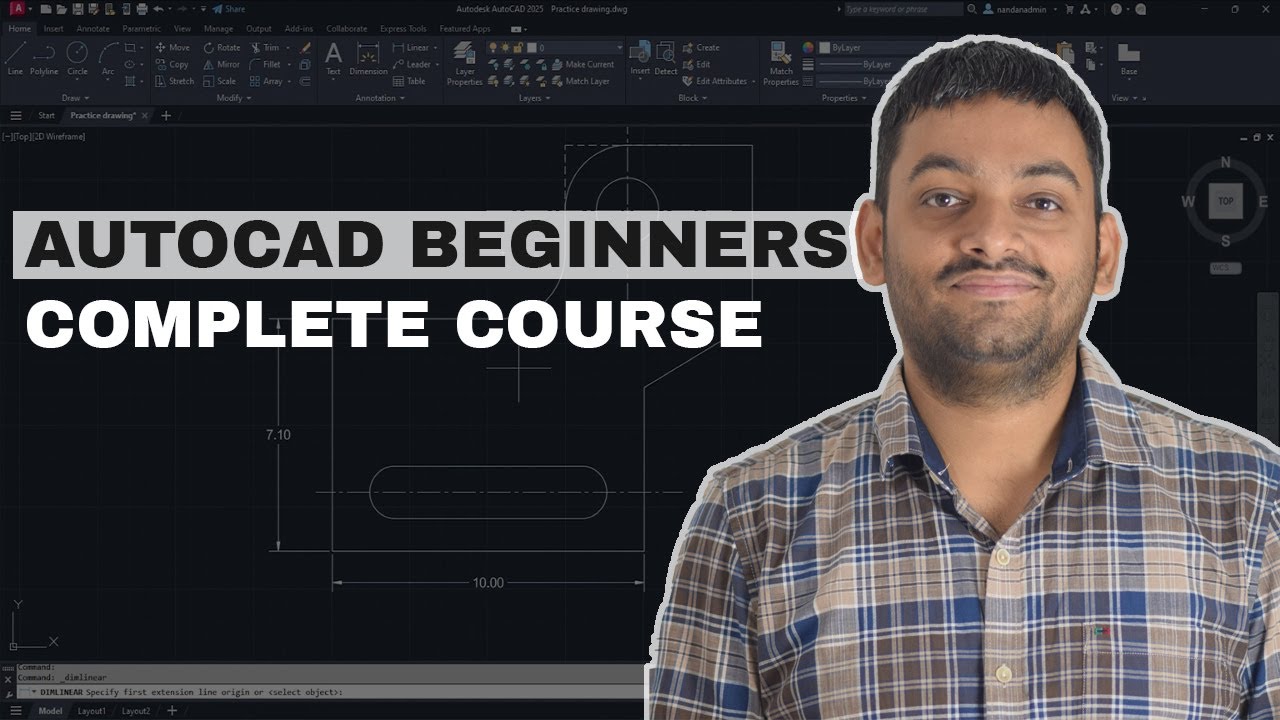
Complete AutoCAD Course for Beginners
AutoCAD 2025 - 15 Minute Tutorial for Beginners!
⌨️ Essential Keyboard Shortcuts
Speed is everything in CAD. Use these shortcuts and hit Spacebar or Enter to execute them.
| Command | Shortcut | Action |
|---|---|---|
| Line | L | Draws straight line segments. |
| Offset | O | Creates parallel copies (Great for walls!). |
| Trim | TR | Cuts objects at intersections. |
| Circle | C | Draws a circle. |
📚 Professional PDF Resources
- Official Survival Guide: The Hitchhiker’s Guide to AutoCAD is the best official PDF for UI basics.
- Practice eBook: SourceCAD's 70+ Practice Drawings PDF is essential for building muscle memory.
Pro-Tip for Beginners
Always watch the Command Line at the bottom of your screen! AutoCAD tells you exactly what to do next in every tool.